
[vc_row][vc_column][vc_column_text]App Ed Review did a comprehensive review of the PLT4M app. Check out the original PLT4M review on the App Ed Review Website. [/vc_column_text][vc_separator][/vc_column][/vc_row][vc_row][vc_column][vc_column_text]
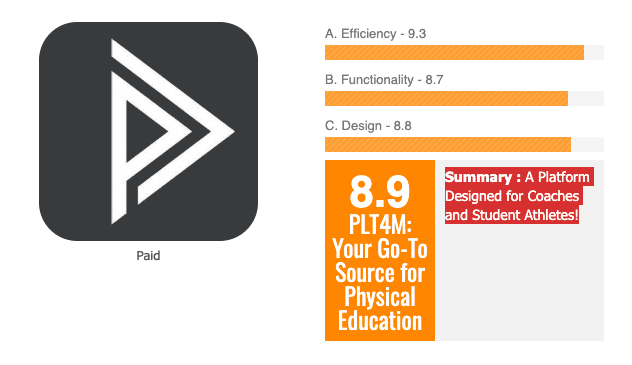
Summary
PLT4M: Your Go-To Source for Physical Education. A Platform Designed For Coaches and Student Athletes!
Efficiency: 9.3
Functionality: 8.7
Design: 8.8
[/vc_column_text][/vc_column][/vc_row][vc_row][vc_column][vc_single_image image=”8133″ img_size=”large”][/vc_column][/vc_row][vc_row][vc_column][vc_column_text]REVIEW
PLT4M is a multipurpose platform for tracking student users’ training progress as well as locating fitness-related resources for supporting high school students. To begin, teacher users must register with the website to access their dashboard, which allows them to access multiple options. Once registered, the “Dashboard” will load, and teacher users can view their newsfeed that includes information about exercise techniques and forms, workouts for student users, and topics related to health and training. The entries typically include a video or podcast about the topic along with additional information. Teacher users can click the different topics to explore them. Next, the “Roster” and “Attendance” options function as a learning management system that allows teacher users to manually enroll students to their class roster by clicking the “Add Athletes” option and then entering the information for each student with the “Enter Athletes” option. They can also click the “Import a List” option and then upload a .csv file that incudes student usernames to build a roster. Finally, they can click the “Use Join Code” option, so student users can add themselves. Once added, the student usernames will appear in the “Roster” section. They will also be able to track student users with the “Attendance” option, which is sortable by the sport, position, and group that was entered when the student users were added to the roster. Next, the “Training” option includes multiple features. To begin, teacher users can click the “Groups” option to create public and private groups of student users that can also be accessed from the “Attendance” option from the dashboard. The “Programs” option includes several premade workouts and workout plans that teacher users can adopt for their students. Users can click a program to access its full information that can be downloaded, and they can click the “Create Program” to build their own workout. The “Schedules” option allows teacher users to build workout routines for their classes and student users. The “Exercises” option includes a searchable list of lifts, movements, and workouts, and teacher users can scroll the entire list by scrolling under the “Categories” option. When teacher users find an exercise of interest, they can click it to view a video about it and access additional information. The third main option is “Analytics” and it provides teacher users with an easy-to-use index for inputting student users performance data broken into three parts: Weight Lifting, Speed and Agility, and Fitness. After student users have been added to the roster, teacher users will be able to add information about their performance in the “Analytics” section, which they can track. After adding data, teacher users can click the “Reports” option to view student user performance over time. Finally, the “Leaderboard” option shows the top student user performers, which can be sorted by different variables. “Account” and “Help” are the final two options, and they allow teacher users can adjust their settings and access assistance, if needed.[/vc_column_text][/vc_column][/vc_row][vc_section][vc_row][vc_column][vc_separator][/vc_column][/vc_row][vc_row][vc_column][vc_column_text]WANT TO SEE FOR YOURSELF WHAT PLT4M HAS TO OFFER?
[/vc_column_text][/vc_column][/vc_row][vc_row][vc_column width=”1/3″][/vc_column][vc_column width=”1/3″][vc_btn title=”Request A Demo” link=”url:https%3A%2F%2Fplt4m.com%2Fwant-to-see-more%2F|title:Want%20to%20See%20More%3F||” el_class=”red_button”][/vc_column][vc_column width=”1/3″][/vc_column][/vc_row][vc_row][vc_column][vc_separator][/vc_column][/vc_row][/vc_section][vc_row][vc_column][vc_column_text]Instructional Ideas for PLT4M
- Teachers can enter their students into a class and have students perform the different exercises that are tracked in the “Leaderboards” section. Teachers can then have students complete the different exercises and track them by entering their performance in this website. Lastly, over the series of a month or semester, teacher can have students complete a workout program and track their performance using this website. At the end of the month or semester, teachers can retest students to monitor growth.
- When planning a course, teachers can view the programs included in this website and choose the program(s) that will be most useful to their students and then implement it. As students and teachers become more proficient in their workouts, they can click the “Create Program” option and build their own program for themselves and other classes to use.
- When demonstrating a new exercise to students, teachers can find it in the “Exercise” option and then show the video of the movement/lift to their students. Next, when students are ready, teachers can have students perform that exercise and coach them.
- Teachers can view the information in their news feed. If they find a topic that would be of interest to students, they can share that information with students by having them view the video or presenting it as a mini lesson. When finished, teachers can ask, “How will you use this information to improve your performance?” They can then use that general question as a springboard into a further class conversation.



 ;
;


